Interactive Plant List
This page presents an
interactive ID guide to the plants you’re interested in.
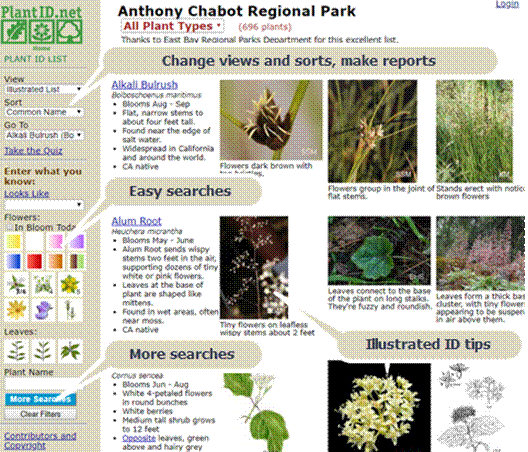
The layout above – the illustrated list – shows
illustrated ID tips for each plant, including 3 photos. Click on the plant name to see more
information about it in the Plant Page.
On the left are tools to
·
Change the view
(Illustrated List, Gallery, Text, Report),
·
Change the sort
(Common Name, Scientific Name, Plant Type, Plant Family),
·
Go to any plant on
the list (useful if the list is long), and
·
Take the quiz –see
more below.
Want to take your plant list where you can’t link to
the internet? Choose View and Report to
create PDF reports you can bring on your phone or print out.
Also on the left are easy searches that let you
enter what you know, to make the list shorter.
For instance, if you’re looking at a yellow flower with 5 petals, click
“In Bloom Today”, Yellow, and 5 Petals.
You’ll get a custom ID guide to just these plants.
Let’s say you recognize your plant as some sort of Lupine. Choose it from the Looks Like
dropdown:

You can combine Looks Like with other searches (e.g. flower color)
to get a nice short list of possibilities.
Click [More Searches] to open up a Search Page that shows many more search possibilities. For instance, you can indicate that your
plant has berries, has catkins, is deciduous, is a succulent, is an annual, and
so forth.
One search is so important that it’s in the title –
plant type:
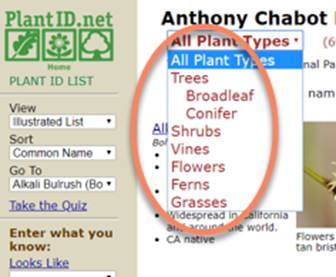
If you choose Vines, for instance, then only vines
will be shown.
Note that all these searches are layered. You can pick any combination of searches that
best describes your plant and the list will show only plants that meet all your
criteria.
Take the Quiz!
Think you know the plants on this list? Let’s see!
You’ll be shown random photos of a particular plant until you have a
guess or give up, when you choose the plant page to see the answer. You can then move on to another plant on the
list, and so forth. You could turn this
into a game with 2 or more people.
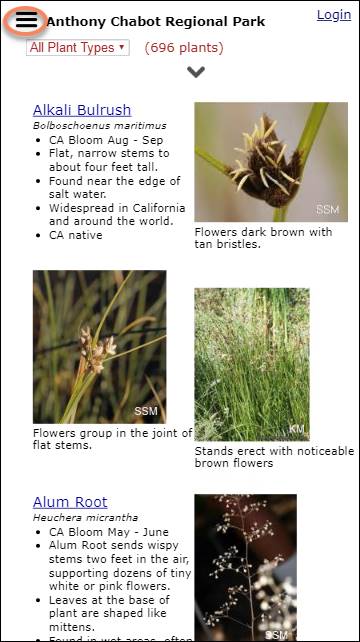
Phone View
If you’re viewing the plant page on a phone, you can
eliminate the side panel by clicking the  icon. Click the
  icon to see
the sidebar again.
icon to see
the sidebar again.